Open Contacts → Tasks.
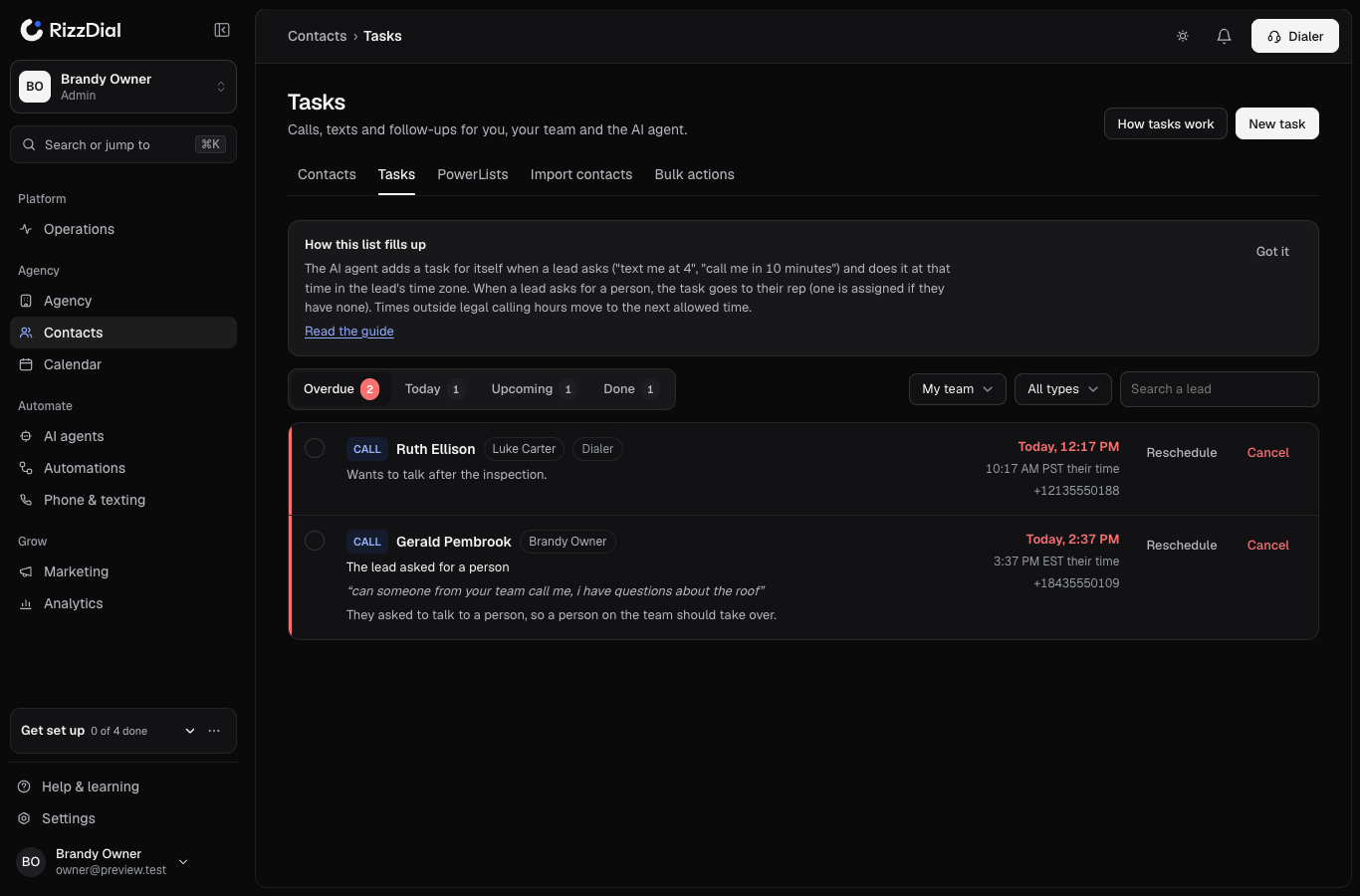
The tabs#
| Tab | What's in it |
|---|---|
| Overdue | Open tasks whose time has passed. They have a red edge. The count turns red when there are any. |
| Today | Open tasks due before the end of your day. |
| Upcoming | Everything after today. |
| Done | Tasks done or cancelled in the last 30 days, with the reason. |
Filters#
- Whose: My tasks, My team (managers, owners and admins), AI agent (managers, owners and admins), or one person.
- Type: Call, Text, Email or Follow up.
- Source: where the task came from (asked by text, asked on a call, workflow, dialer, by hand, by chat, AI agent).
- Search a lead by name or phone.
The page remembers your tab and filters.
Read a task#
Each row shows:
- the type and the lead's name (click it to open the lead);
- who owns it, and where it came from (Asked by text, Asked on a call, Workflow, Dialer and so on);
- the lead's own words in quotes, your note, and anything the time was assumed or moved for;
- the time in your zone, and the lead's own clock when it differs;
- a warning when the lead has turned off that channel, for example Opted out of texts on a text task;
- Lead already responded when the lead wrote after the task was made, and Manager told when an overdue task was reported (escalation).
Complete, snooze, reschedule, cancel#
- Complete: click the circle on the left, then pick how it went: Reached them, No answer, Left voicemail, Booked, Not interested, Wrong number or Other, with an optional note. The outcome shows in Done and in the report.
- Snooze 1h: pushes the task one hour later. Call and text times still follow legal hours.
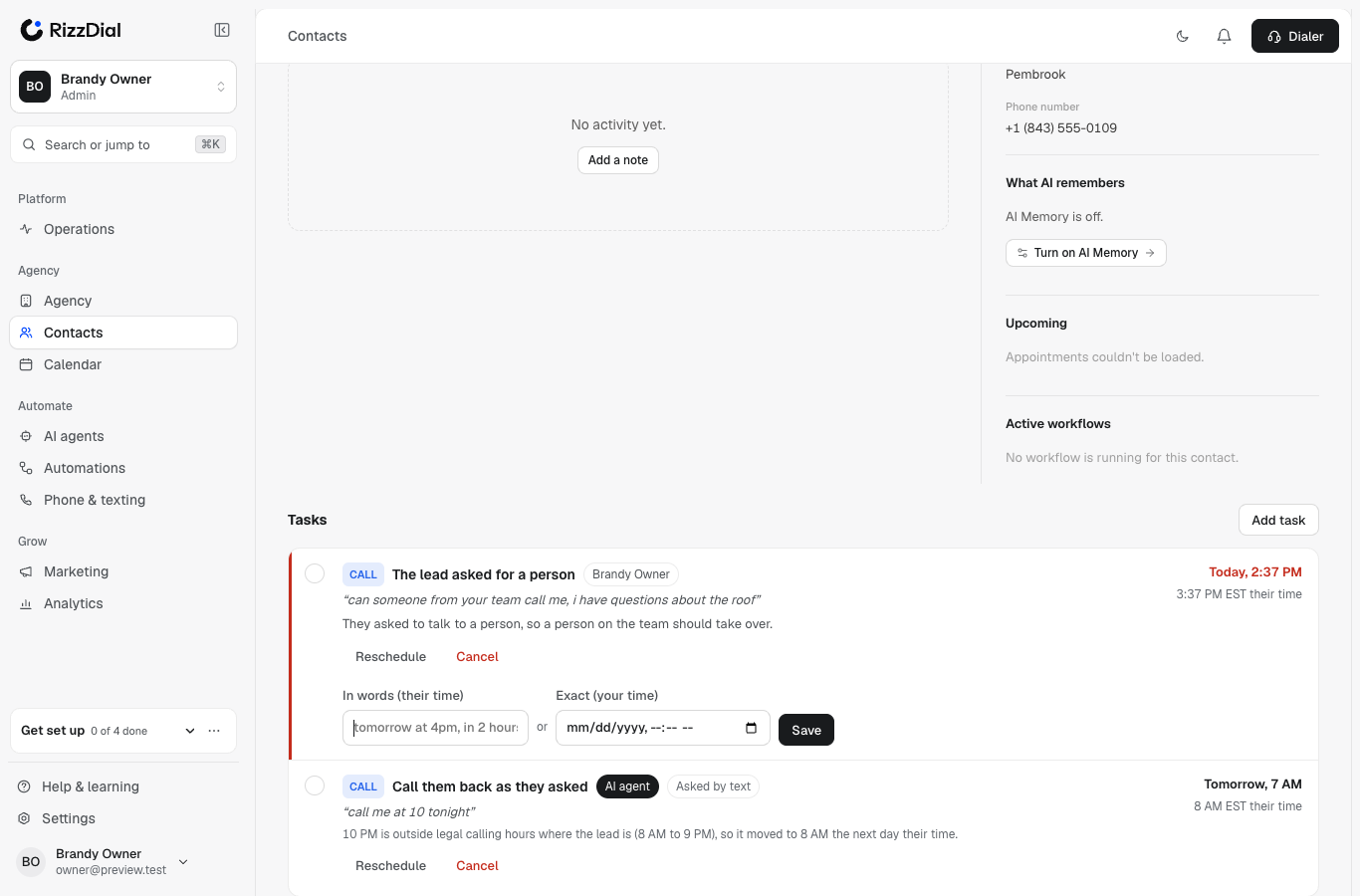
- Reschedule: type the new time in words, in the lead's time ("tomorrow at 4pm", "in 2 hours"), or pick an exact time in your time. A call or text time outside legal hours moves to the nearest allowed time, and the page tells you.
- Cancel: the task closes. The lead is not contacted about it.
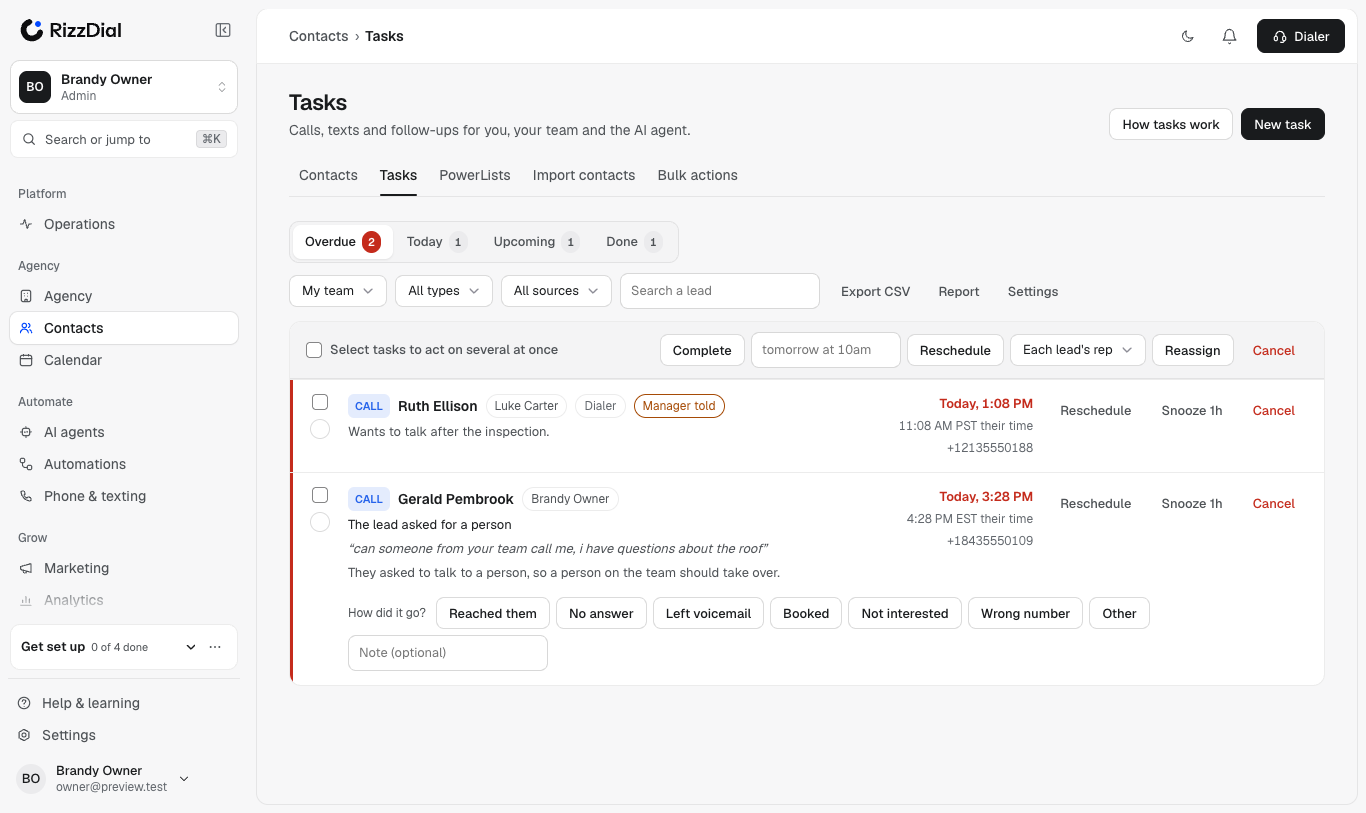
Work on many at once#
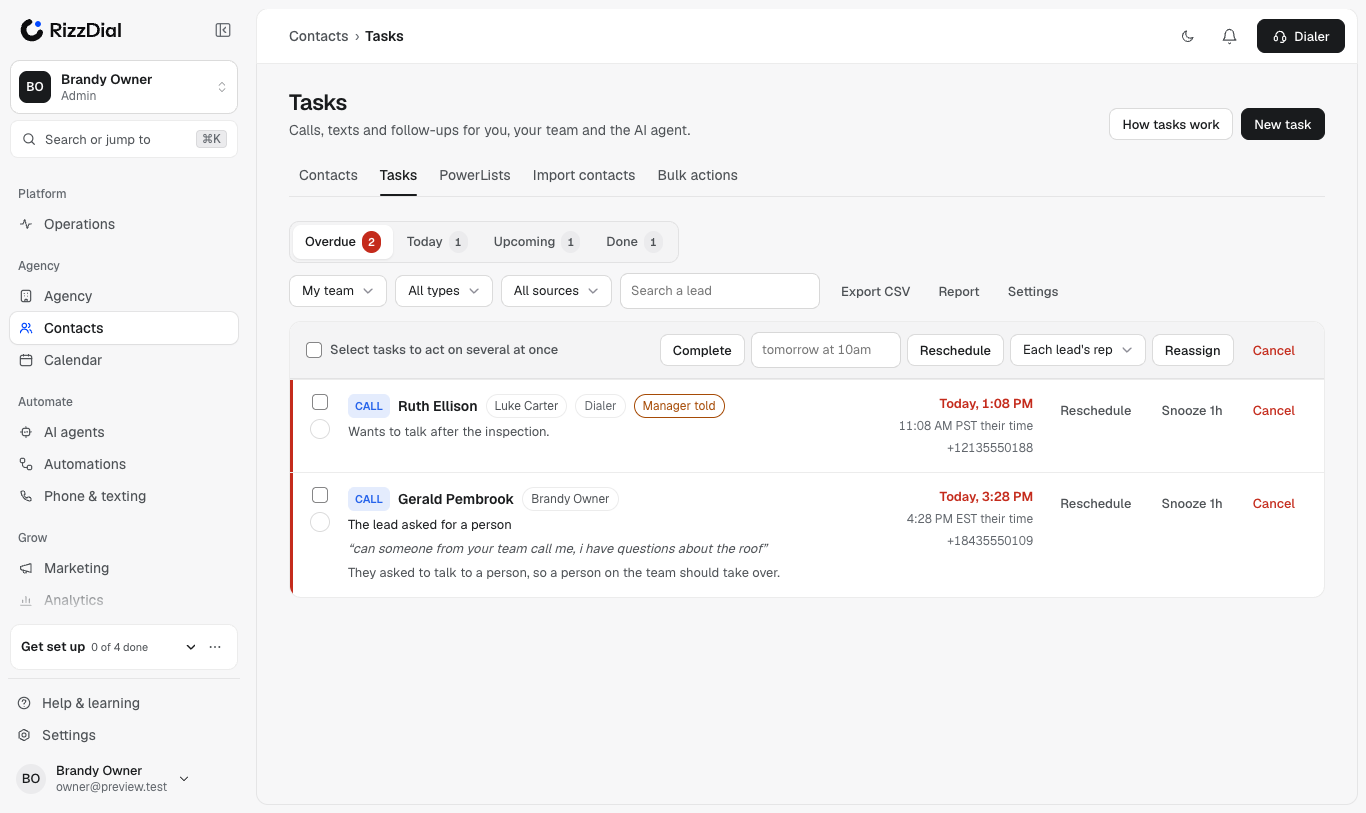
Tick the boxes on the left (or Select tasks to act on several at once), then:
- Complete them all;
- Reschedule them all to a time in words, for example "tomorrow at 10am" (each lead's own time);
- Reassign them to a person, or to Each lead's rep;
- Cancel them all.
The page tells you how many changed and which ones could not, and why.
Export and report#
- Export CSV downloads the list you are looking at (same filters, same visibility), with each task's times in your zone and the lead's, the owner, source, outcome, the lead's words and any notes.
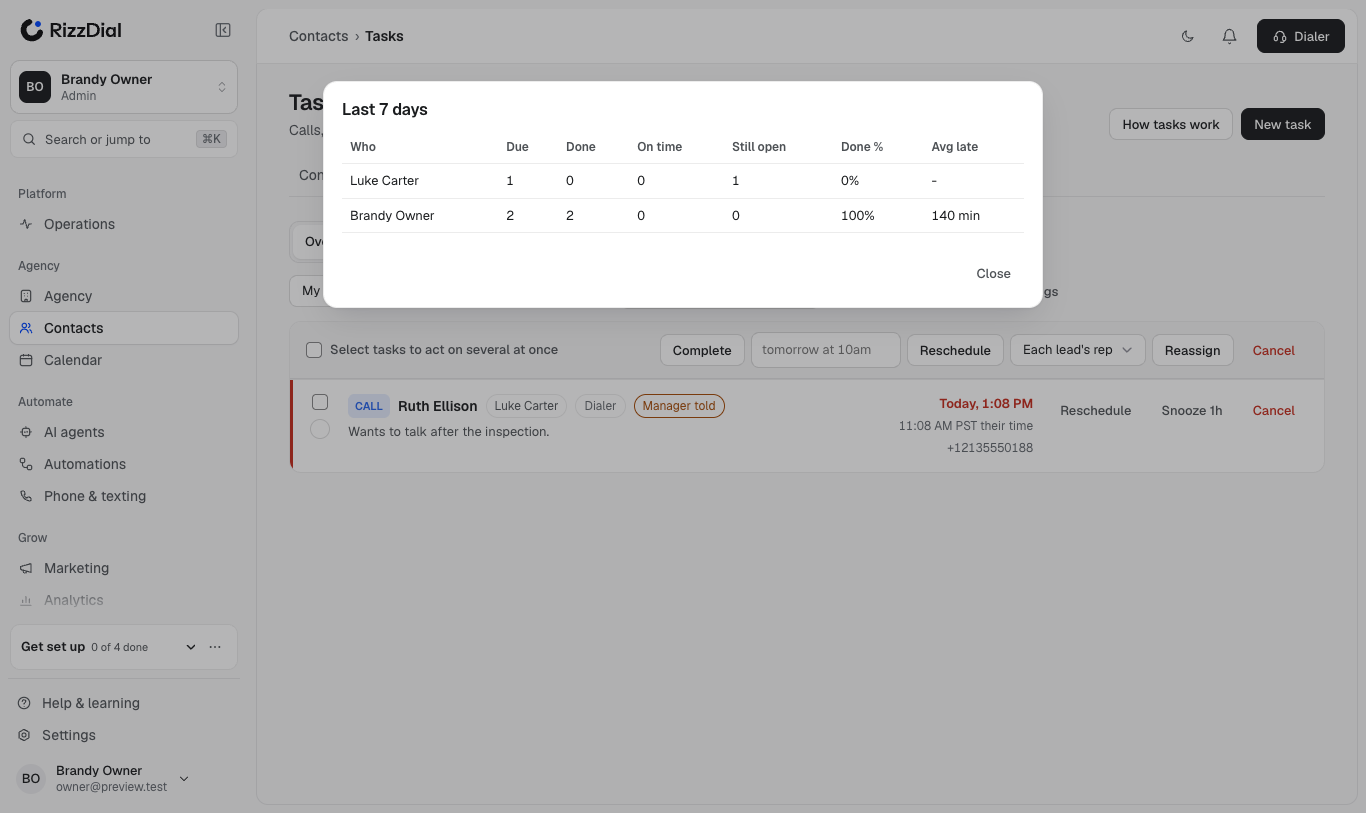
- Report (managers, owners and admins) shows the last 7 days per person and for the AI agent: tasks due, done, done on time (within 15 minutes), still open, the done rate, and how late tasks were done on average.
Add a task#
Click New task, find the lead, then pick the type, who does it, when (in the lead's time) and a note.
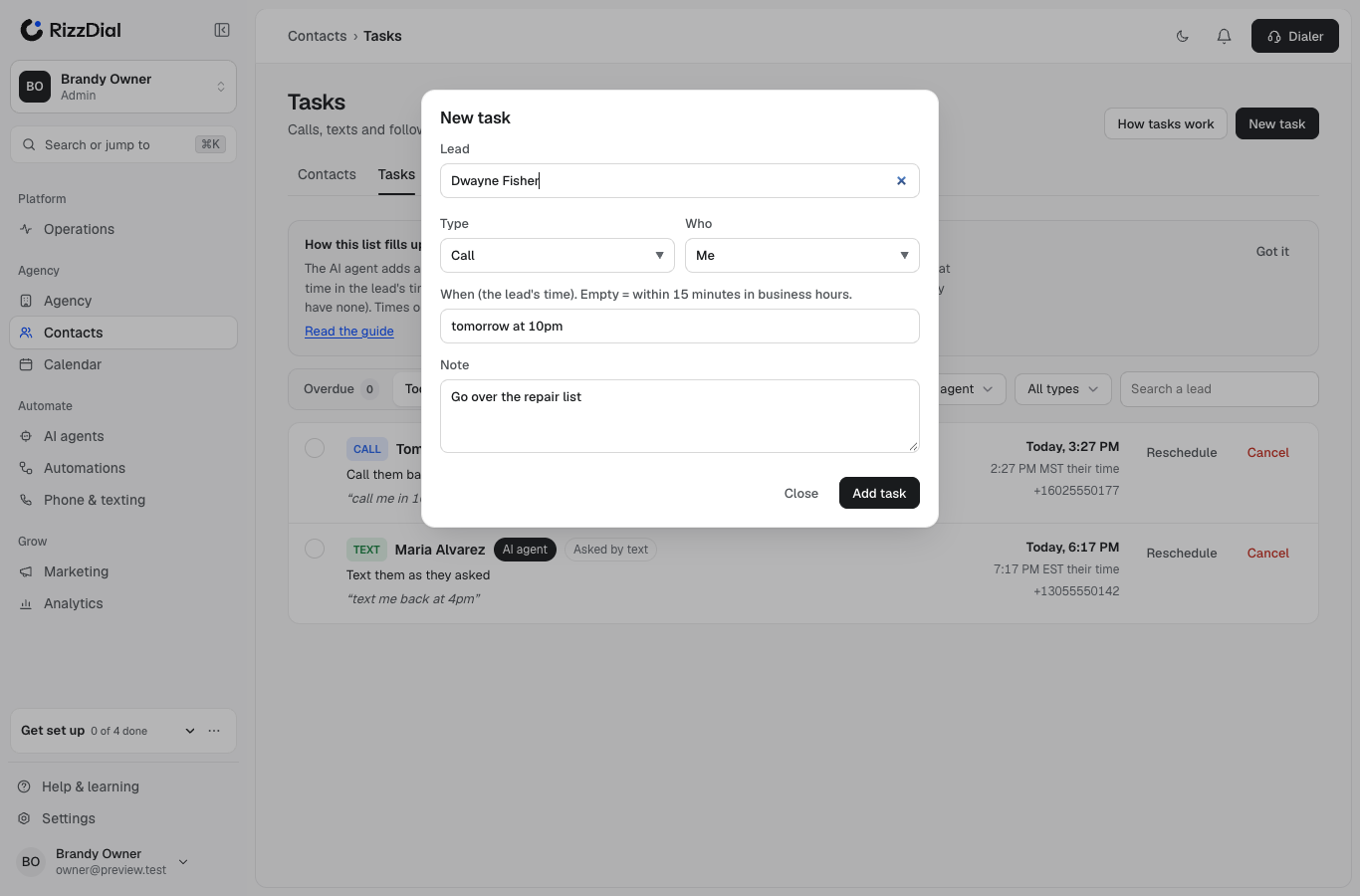
Who can be you, a person you manage, or The lead's rep, which gives it to the lead's rep or assigns one first. Leave When empty for the next 15 minutes inside business hours.
On a lead's page#
Each lead's page has a Tasks block under the activity: open tasks first, then the last 30 days, the AI agent's included. You can add, complete, reschedule and cancel from there. The lead's timeline also shows each task: who it is for, when (their time), what they asked, and whether it was done (with the outcome) or cancelled (with why).
In the dialer#
The dialer's Callbacks tab lists the same tasks for reps, and its badge counts your overdue and due-today tasks. A task the AI agent gives a rep shows there too, with reminders 5 minutes before and at the due time.
On your phone#
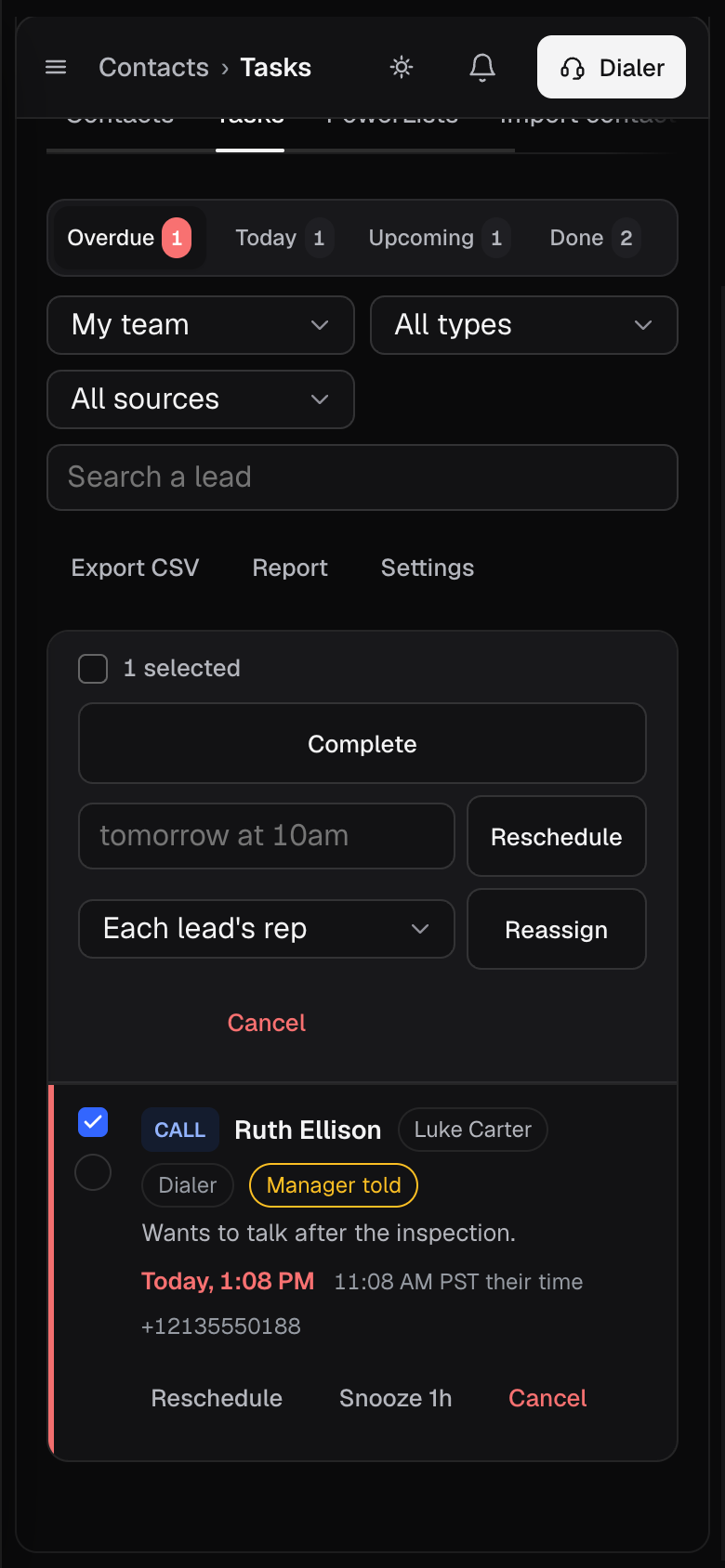
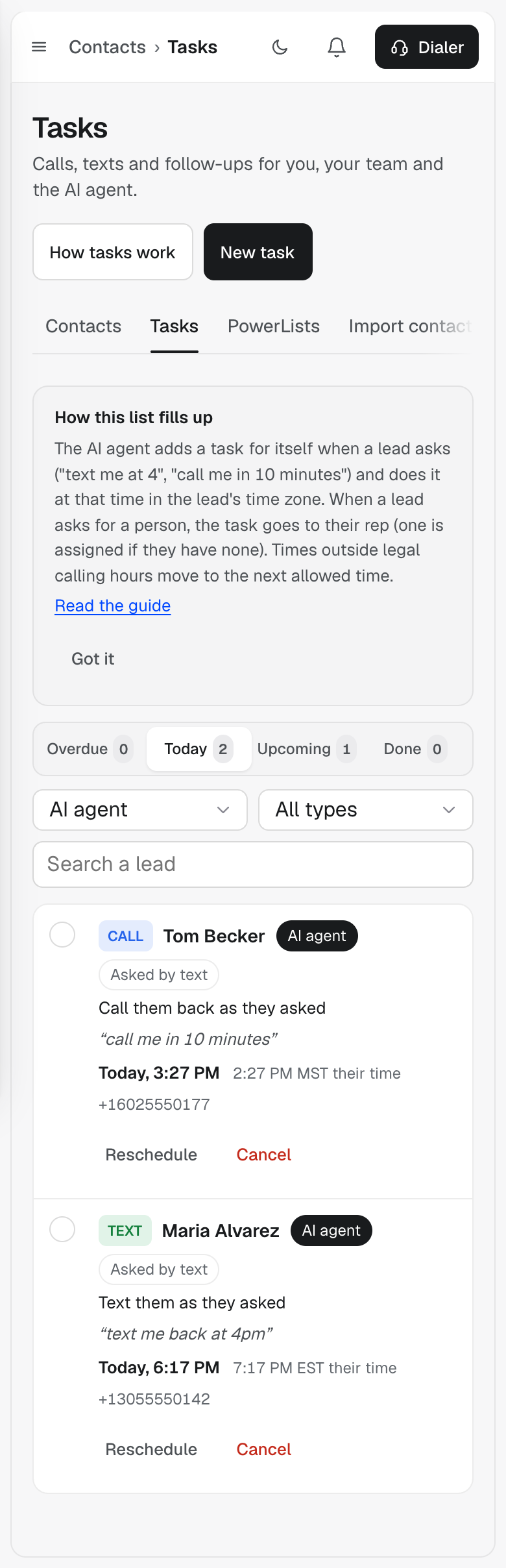
The page works on a phone. Tabs, filters and every action fit the screen.
Tasks from workflows#
The workflow step Create Task makes a real task on this page:
| Setting | What it does |
|---|---|
| Task title | Shown on the task. Merge tags work, for example Call {{contact.first_name}}. |
| Assigned to | The person who gets it. Leave it empty to give it to the lead's rep (one is assigned if they have none). |
| Task notes | Shown under the title. Merge tags work. |
| Task type | Call, Text, Email or Follow up. |
| Due in (minutes) | How long after the step runs. 15 or less means the next 15 minutes inside business hours. |
A step that runs again for the same lead in the same run never makes a second task.