

🔌 Open the page
Go to Settings in the app, then open the Connected Apps tab.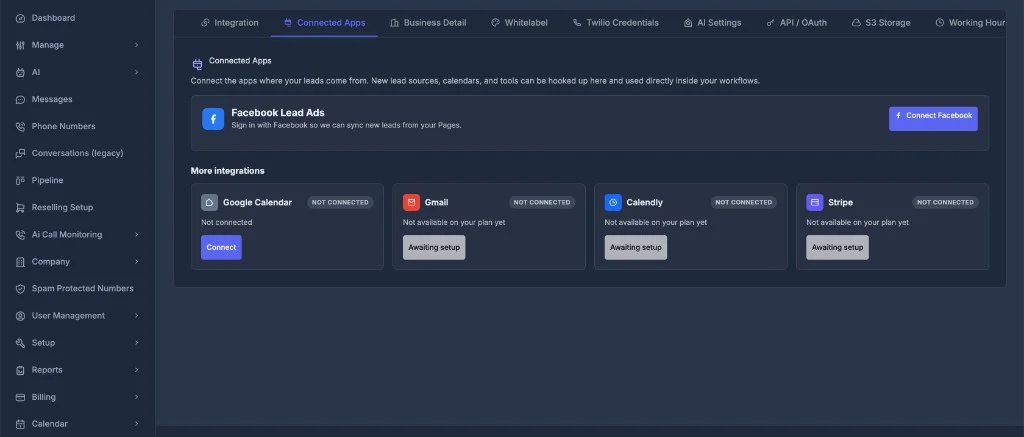
Connect the apps where your leads come from. New lead sources, calendars, and tools can be hooked up here and used directly inside your workflows.Below that, integrations are grouped into a primary lead-source card and a More integrations section.
📘 Facebook Lead Ads
Facebook Lead Ads is the main integration on this page. Use it to pull new leads from your Facebook Pages into RizzDial automatically. What it does- Signs in with your Facebook account
- Syncs new leads submitted through your Facebook Lead Ad forms
- Makes those leads available for workflows, follow-up, and AI agent handling
- Find the Facebook Lead Ads card at the top of the page.
- Click Connect Facebook.
- Sign in with the Facebook account that manages your Pages.
- Approve the permissions requested during sign-in.
- After connection succeeds, new leads from your Pages begin syncing into the platform.
📅 Google Calendar
Connect Google Calendar so appointments and scheduling features can read and write events from your Google account.| Status | What you see |
|---|---|
| Not connected | A Connect button and a NOT CONNECTED badge |
| Connected | Your linked Google account and calendar controls |
- Scroll to More integrations.
- Open the Google Calendar card.
- Click Connect.
- Sign in with the Google account you want to use for scheduling.
- Grant the calendar permissions requested during sign-in.
✉️ Gmail
Gmail lets you connect a Google mailbox for email-based workflows and messaging features. On some plans, the Gmail card shows Not available on your plan yet with an Awaiting setup button instead of an active Connect action. That means Gmail is included on a higher subscription tier or needs to be enabled for your account. If Gmail is available on your plan:- Open the Gmail card under More integrations.
- Click Connect.
- Sign in with the Google account for the mailbox you want to link.
- Approve the requested permissions.
🗓️ Calendly
Calendly connects your Calendly scheduling account so booking links and availability can be used inside workflows and AI agent settings. Like Gmail, Calendly may show Not available on your plan yet on accounts where the integration has not been enabled. When Calendly is available:- Open the Calendly card.
- Click Connect.
- Sign in to Calendly and approve access.
- Select the scheduling account or event types you want to use.
💳 Stripe
Stripe connects your payment account so billing, packages, and reselling features can process charges through your own Stripe account. On plans where Stripe is not yet enabled, the card displays Not available on your plan yet with Awaiting setup. When Stripe is available on your account:- Open the Stripe card under More integrations.
- Click Connect (or follow the setup flow shown on the card).
- Complete Stripe onboarding with your business and payout details.
- Return to Connected Apps to confirm the account is linked.